
FOR GARDENING BUSINESSES
Before-and-after photos for gardening work
A clear comparison can show what changed after a garden tidy-up, mowing visit or hedge trim. B4After helps gardeners capture or choose a photo pair, match its framing and save a side-by-side or stacked comparison on iPhone and iPad.
B4After is available now on the App Store for iPhone and iPad. It requires iOS 18 or iPadOS 18 or later. An active subscription is required to create new projects and save comparisons.
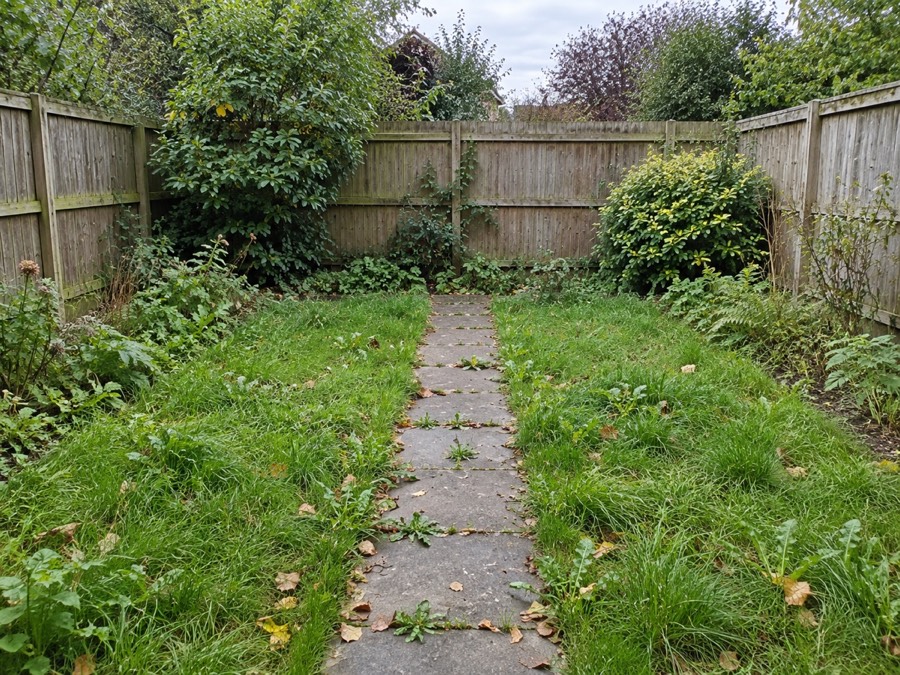
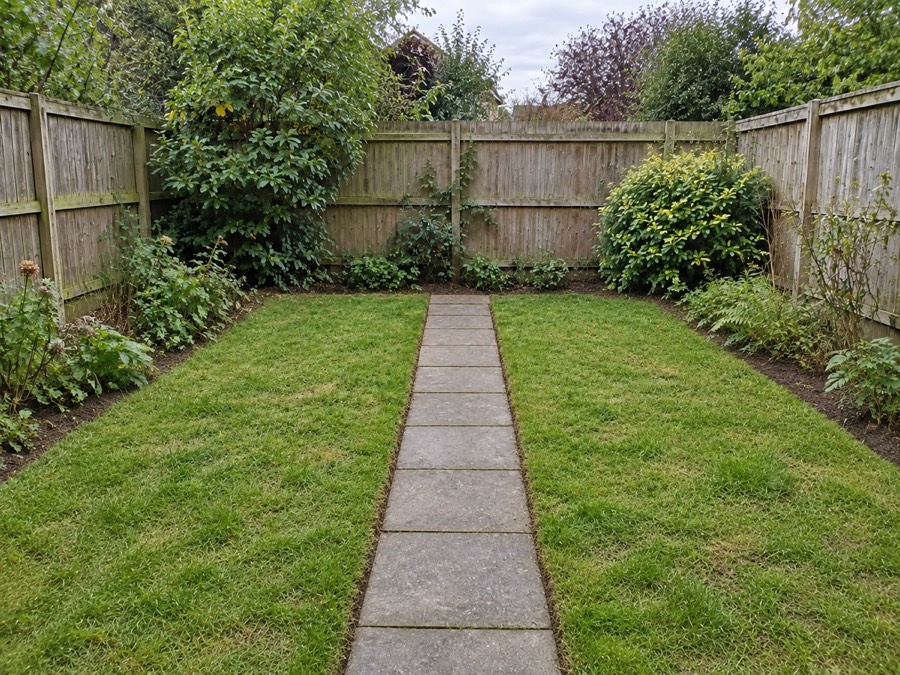
These example photos were created with AI for demonstration. They illustrate the comparison format and are not a customer’s job or a result generated by B4After.
Choose a viewpoint you can repeat
Take the before photo before work begins. A path, gate or patio edge can help you remember where you stood. Keep a fixed feature, such as a fence corner or the end of a path, in both frames. Take the after photo from the same position, at a similar height and distance.
For a garden tidy-up, use a wider pair to show the overall space and a separate closer pair for edges, beds or an overgrown patch. One comparison should show the same area before and after; different areas are clearer as separate pairs.
Make the garden comparison in B4After
Choose your before photos with Choose Images. Keep the before reference in view as you take the after photo, or choose the after from your photo library. Select either image in Photo Adjustments to crop it and adjust exposure, brightness, contrast or warmth.
Use manual after-crop alignment to keep the same patch of garden in the comparison. Then choose a stacked or side-by-side layout, add optional Before and After labels and tap Save to Photos. The step-by-step iPhone guide explains the full workflow.
Make the work easy to see
Keep the useful context in both photos. If a path shows the new edges or a hedge gives the garden its shape, do not crop it out of one image and leave it in the other. Similar lighting also makes the pair easier to judge. Crop and adjustment tools help with presentation, but they do not change the gardening work you have completed.
Try both comparison layouts before saving. A stacked pair can give each garden photo more room in a narrow client message. A side-by-side pair may suit a wider portfolio space. Check the saved image at the size your client will see.
Use the image in your existing business tools
- Client updates: share the saved comparison from Photos to show a finished visit.
- Portfolios and social posts: show a garden tidy-up or maintenance result in one image.
- Quotes: include a relevant example of previous work to help explain a similar service.
- Invoices: attach a comparison where your invoicing tool supports images, or send it alongside the invoice.
B4After creates the image. It does not create quotes or invoices, post to social accounts, or automatically send photos to clients.
Return to the job later
Name a project so you can find it again. Progress saves automatically on your device, and you can reopen comparisons to make changes. Hide completed projects when you want to focus on unfinished work.
Keep the photo workflow on your device
No B4After account is needed. Photos and projects are processed and stored locally rather than uploaded to a B4After server. You choose when to save the comparison to Photos and share it through another app. Read the privacy policy for details.
Show the difference from your next job.
Download B4After for iPhone and iPad. Subscription required to create projects and save comparisons. See pricing and subscription information.